Confirming Flight Details
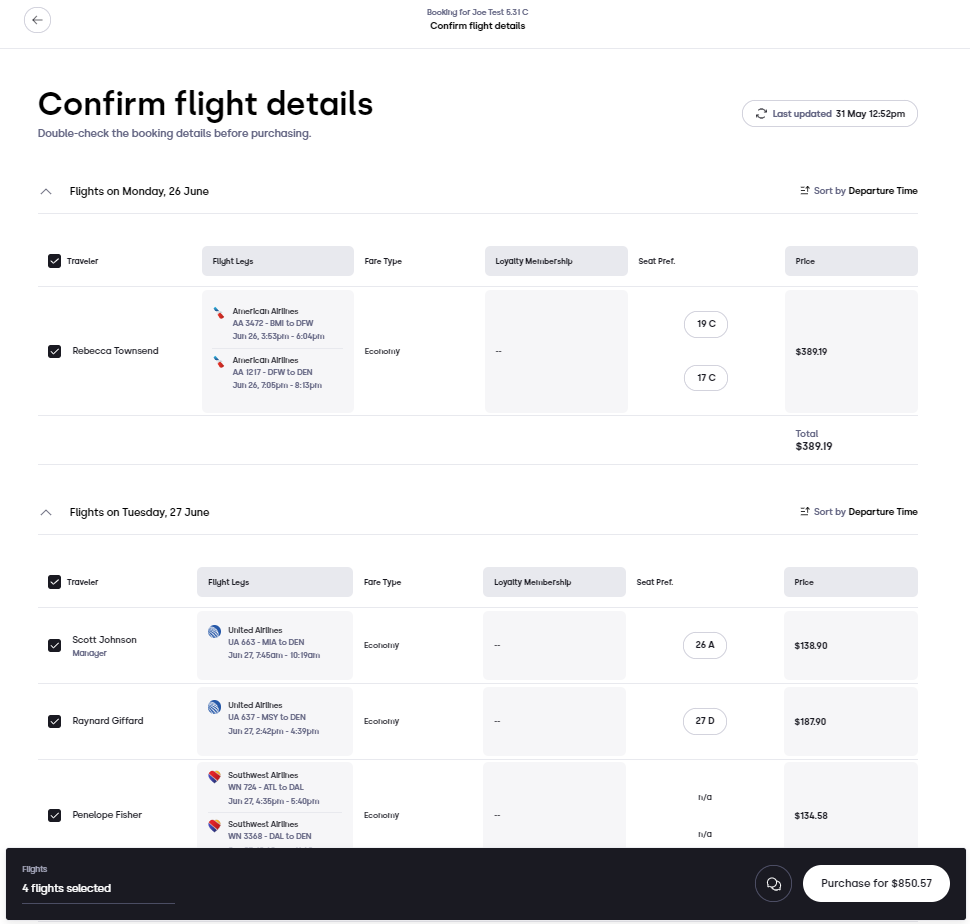
Once you have chosen the flight options for your travelers, you will move into the 'confirm flight details' page. This page lists the flight details for each of your travelers, automatically sorted by day of travel. The column headers include the Traveler Name, PO Number, Flight Leg details, Fare Type, Loyalty Membership, Seat Preference, and Price. You can sort this information by departure time, Arrival time, Price (Highest to Lowest), Price (Lowest to Highest), and Traveler's Last Name. The price displayed for the flight is the total fare, including all airline taxes and fees.
De-selecting Flights
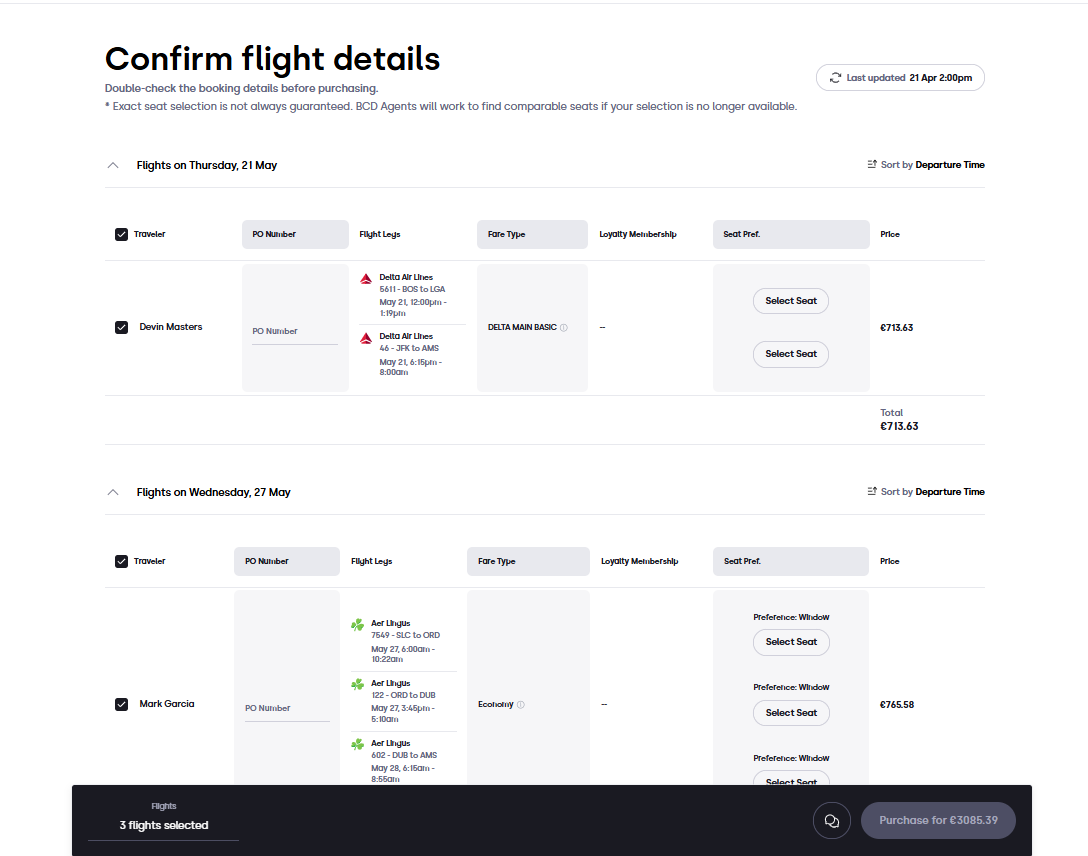
You can deselect a traveler on this page to remove them from the purchase. Once you have clicked the checkmark off of a specific traveler, they will no longer be added to the purchase confirmation.
Selecting Seats
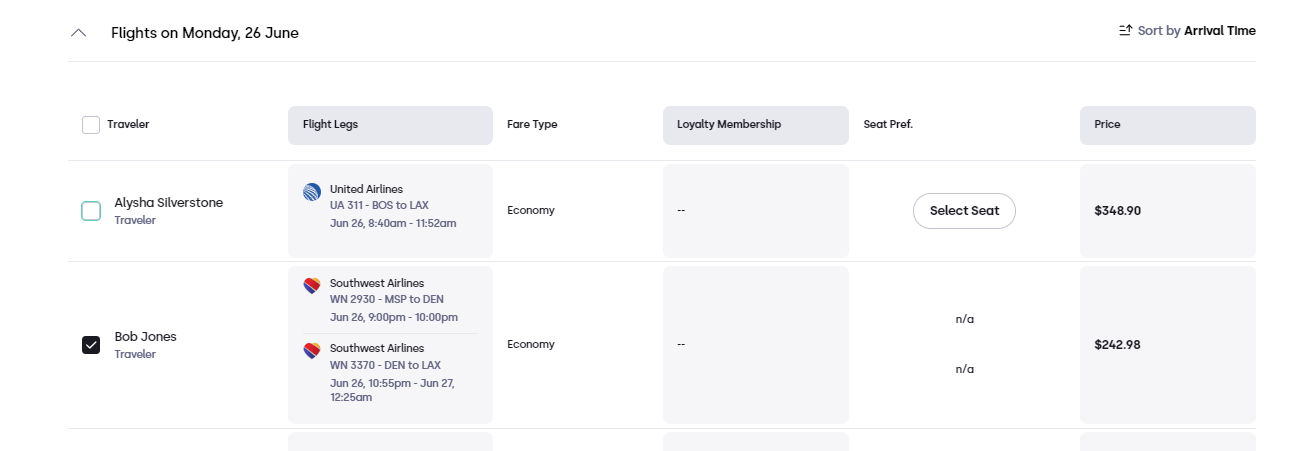
For those fare class options that do allow for seat selection you can choose seats for each of your travelers from this page by clicking on the 'Select Seat' button. If your airline or fare class selection does not allow for seat selection, you will see an n/a displayed in this column.
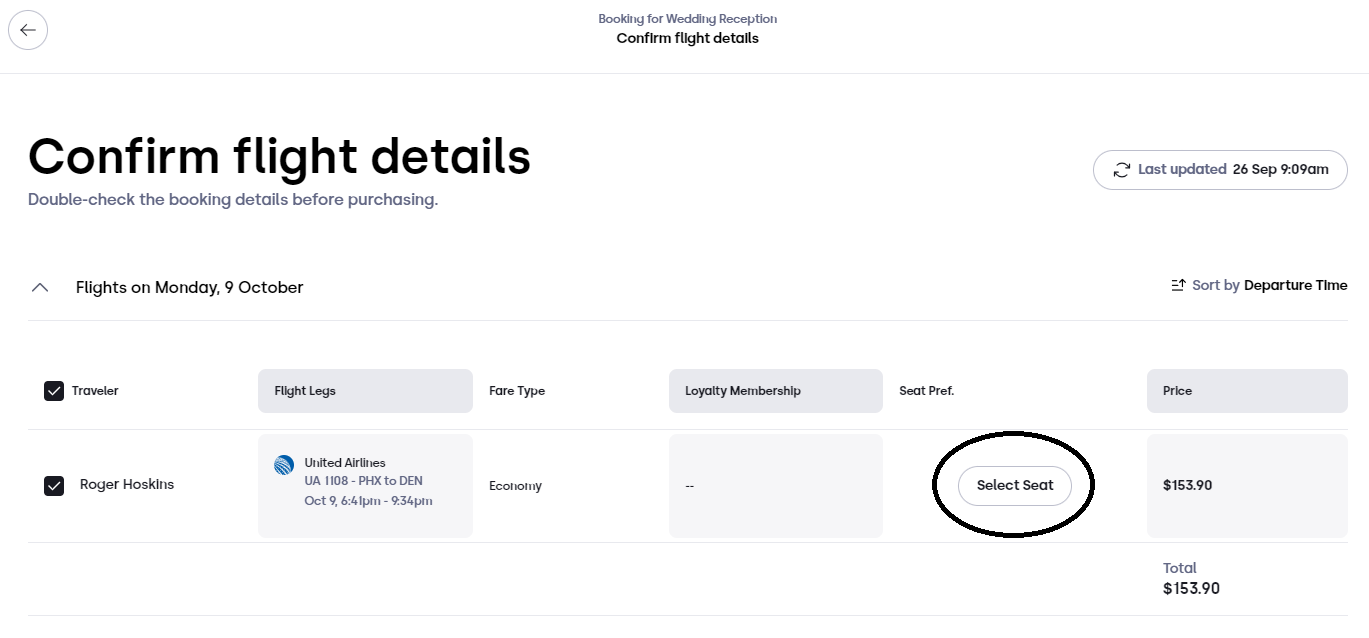
Once you click on the 'Select Seat' button there will be a small wait while the appropriate airline seat map is displayed. Once shown, select the desired seat and your selection will color with your travelers initials and you can select 'Save & return to Booking' or 'Save, next flight'.
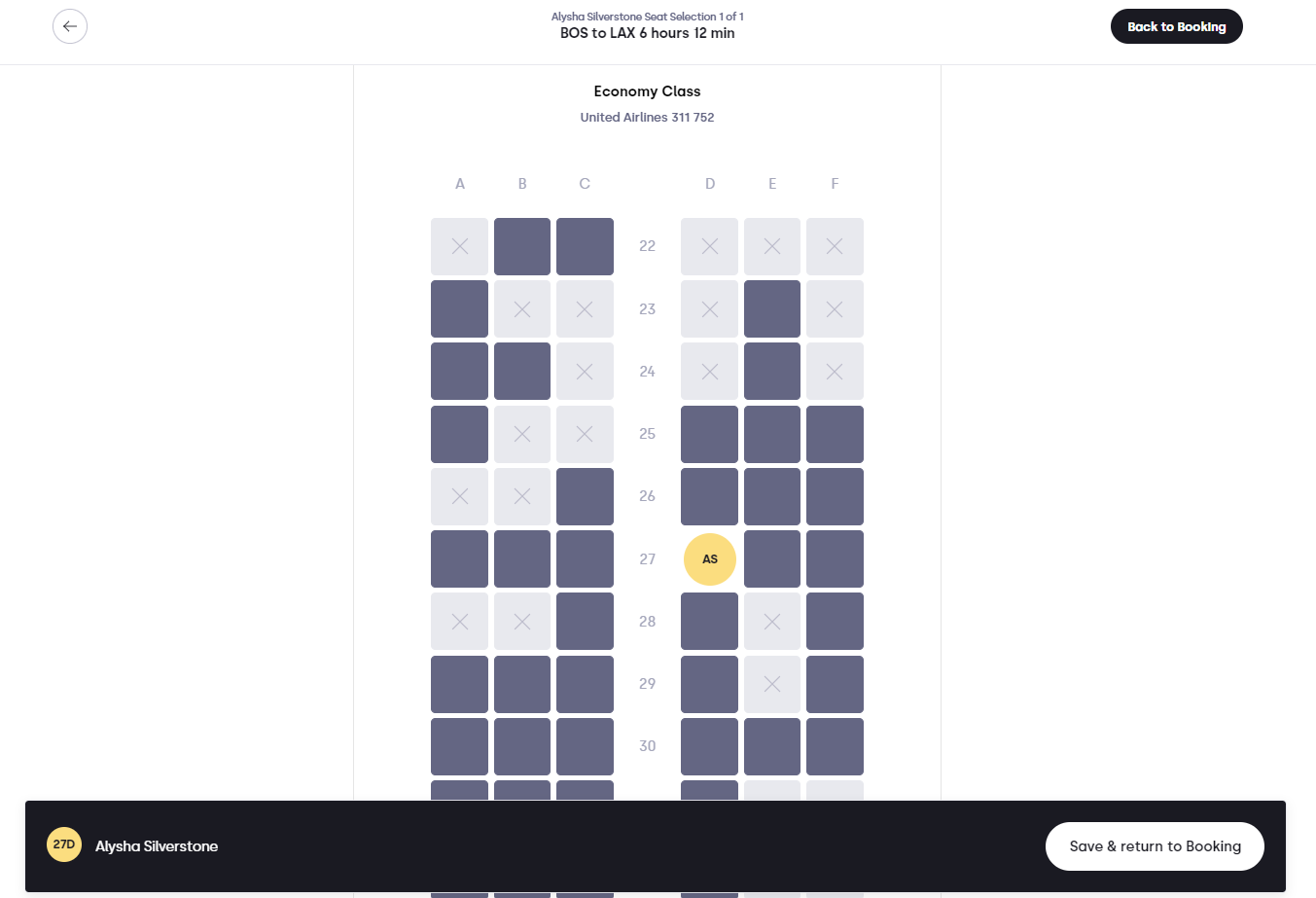
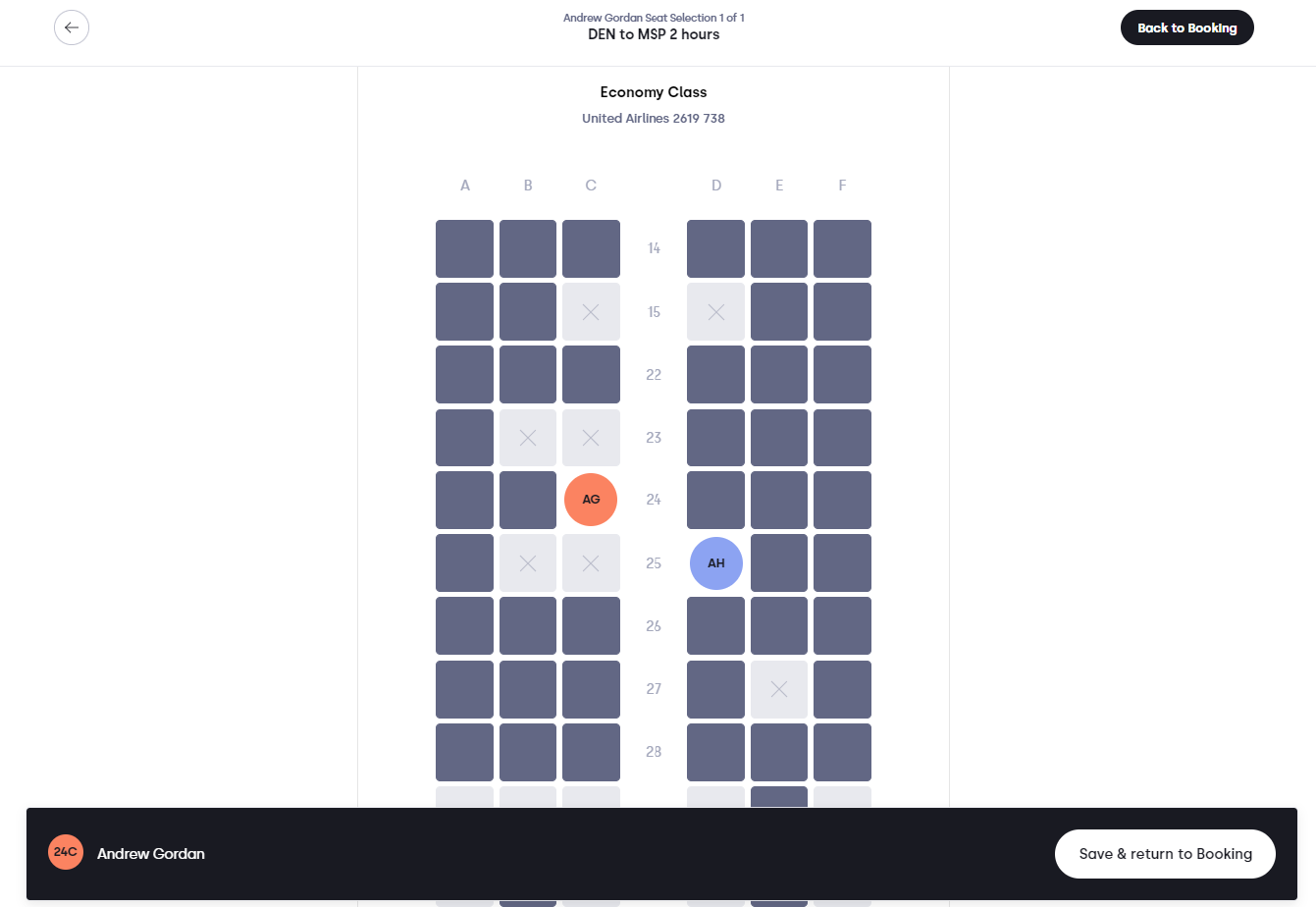
Q. I have more then on traveler on the same flight, will I see both travelers on a seat map?
A. Yes, if you have chosen a seat for one traveler and you are choosing a seat for another traveler on the same flight, you will see both displayed on the seat map.
Note: Not all flights will have a seat map available, if this occurs you will receive a message that the map is unavailable and you can continue on to the next traveler. Once purchased you have the option of taking the record locator provided and selecting seats on the airlines website.
Once you have chosen all of your travelers seats and you are satisfied with the flight details you can select "Purchase for $xxxx.xx" at the bottom of the screen to move to the Purchase screen.